Mexico

Press for next slide

Geography

Let’s learn more about the Mexico!

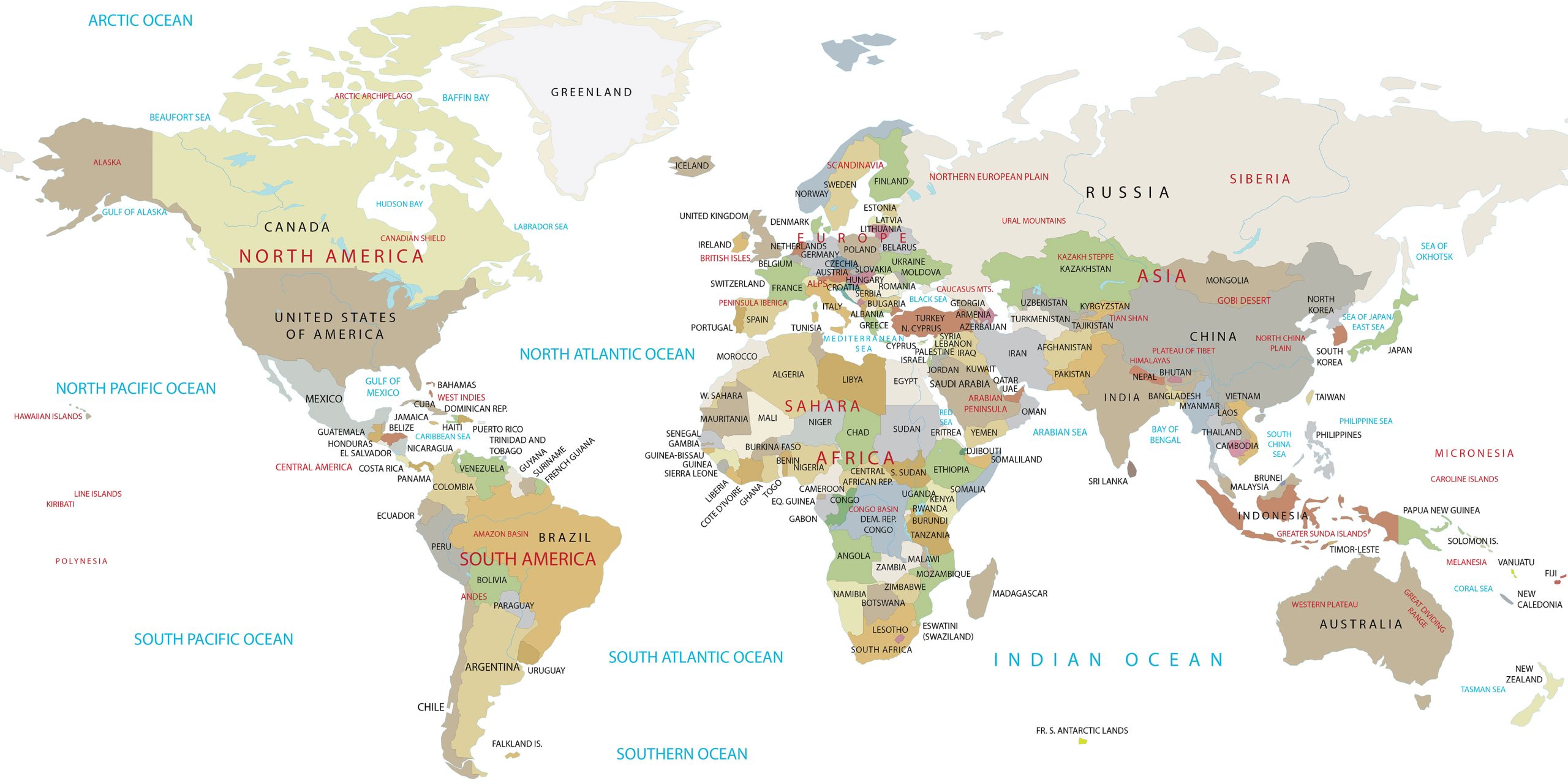
🗺️ World Map 🗺️

world map

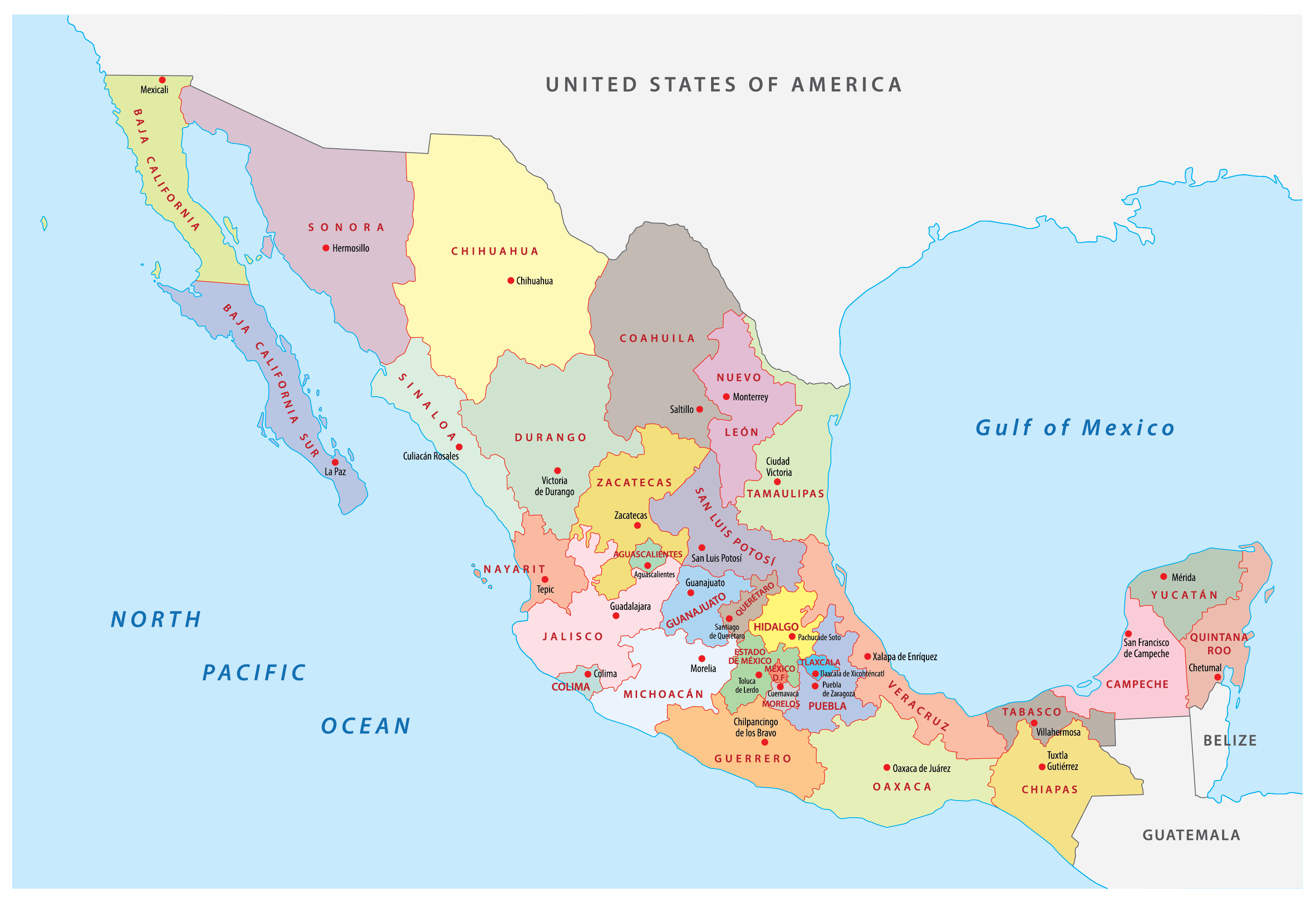
🇲🇽 Mexico 🇲🇽

mexico map

🇲🇽 Mexico City 🇲🇽

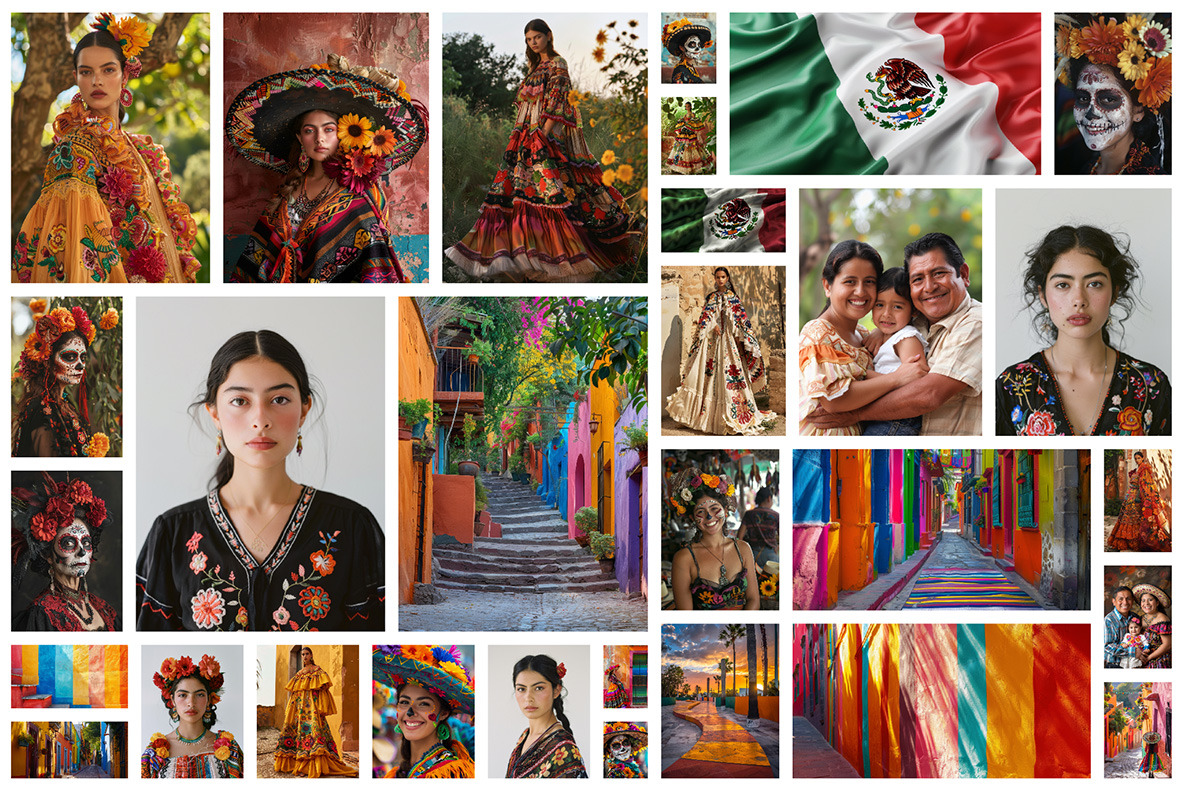
The people and culture of Mexico

mexican people

🌯Cuisine🌮

TACOS

INGREDIENTS

  • Meat

  • Lettuce

  • Tomato

  • Cheese

tacos

WE’RE TALKING TACOS BUDDY!

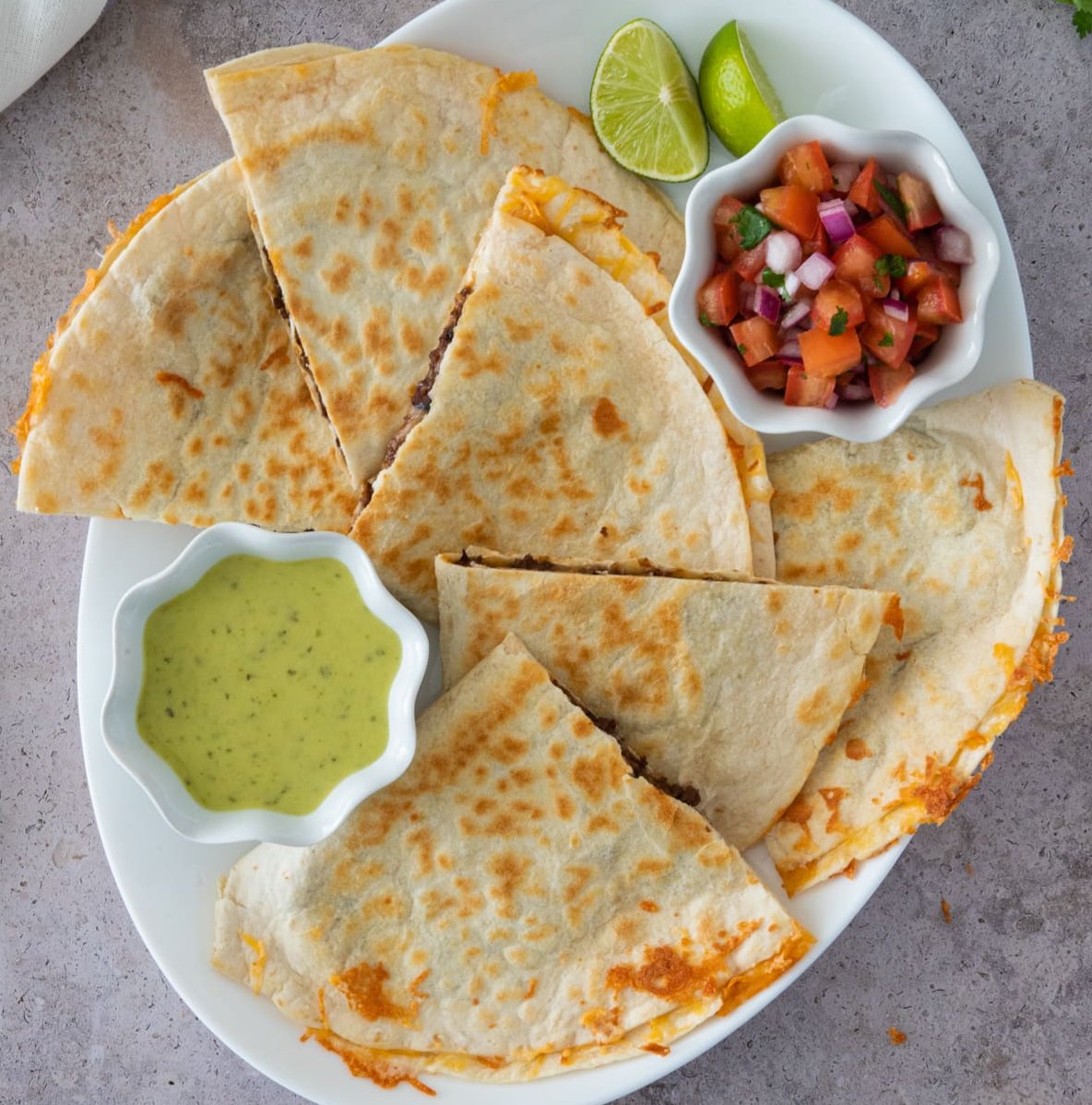
QUESADILLAS

INGREDIENTS

  • Meat

  • Beans

  • Cheese

quesadillas

HOLY GUACAMOLE!

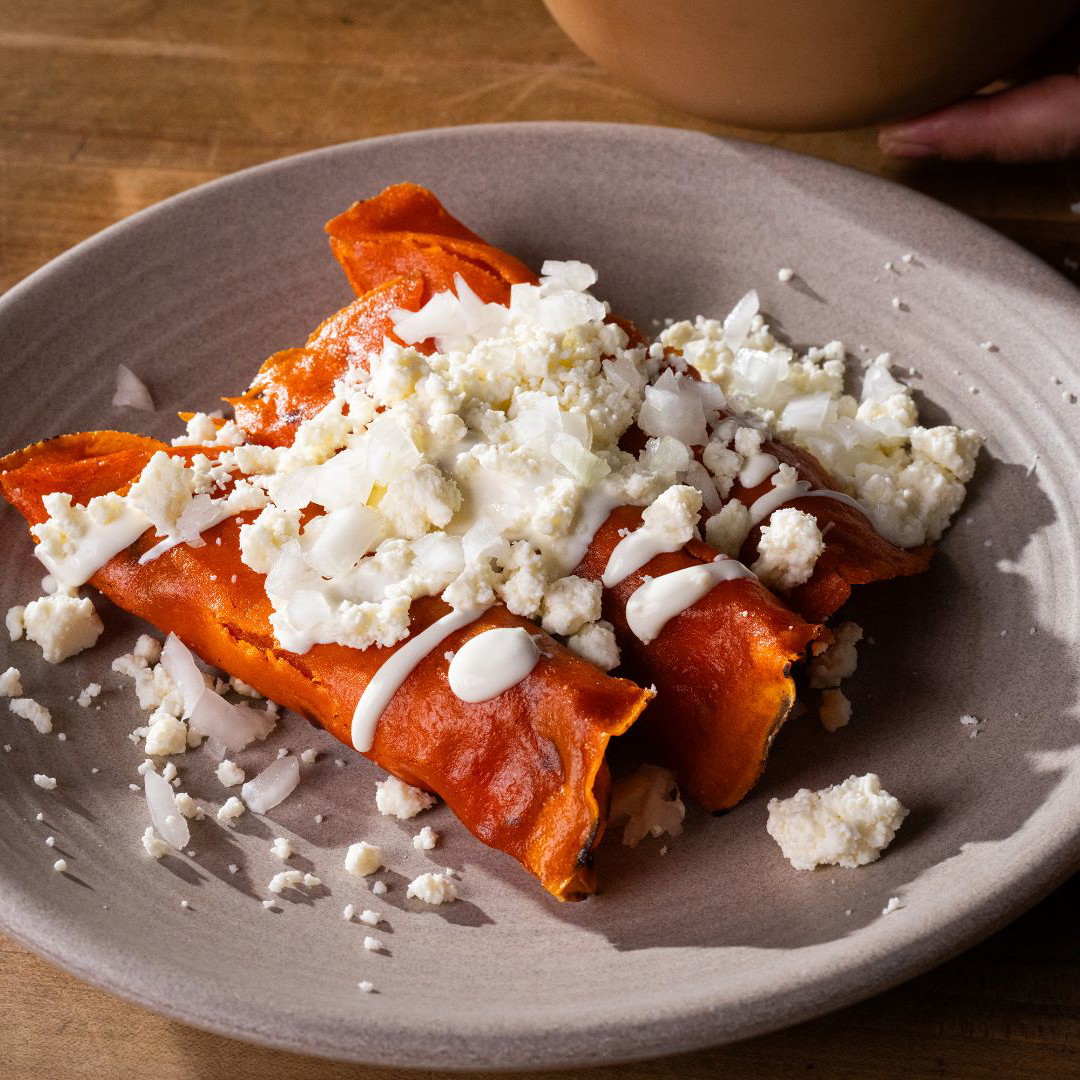
ENCHILADAS

INGREDIENTS

  • Meat

  • Corn flour wrap

  • Tomato

  • Cheese

enchiladas

Aunt Jalata?!

No way José

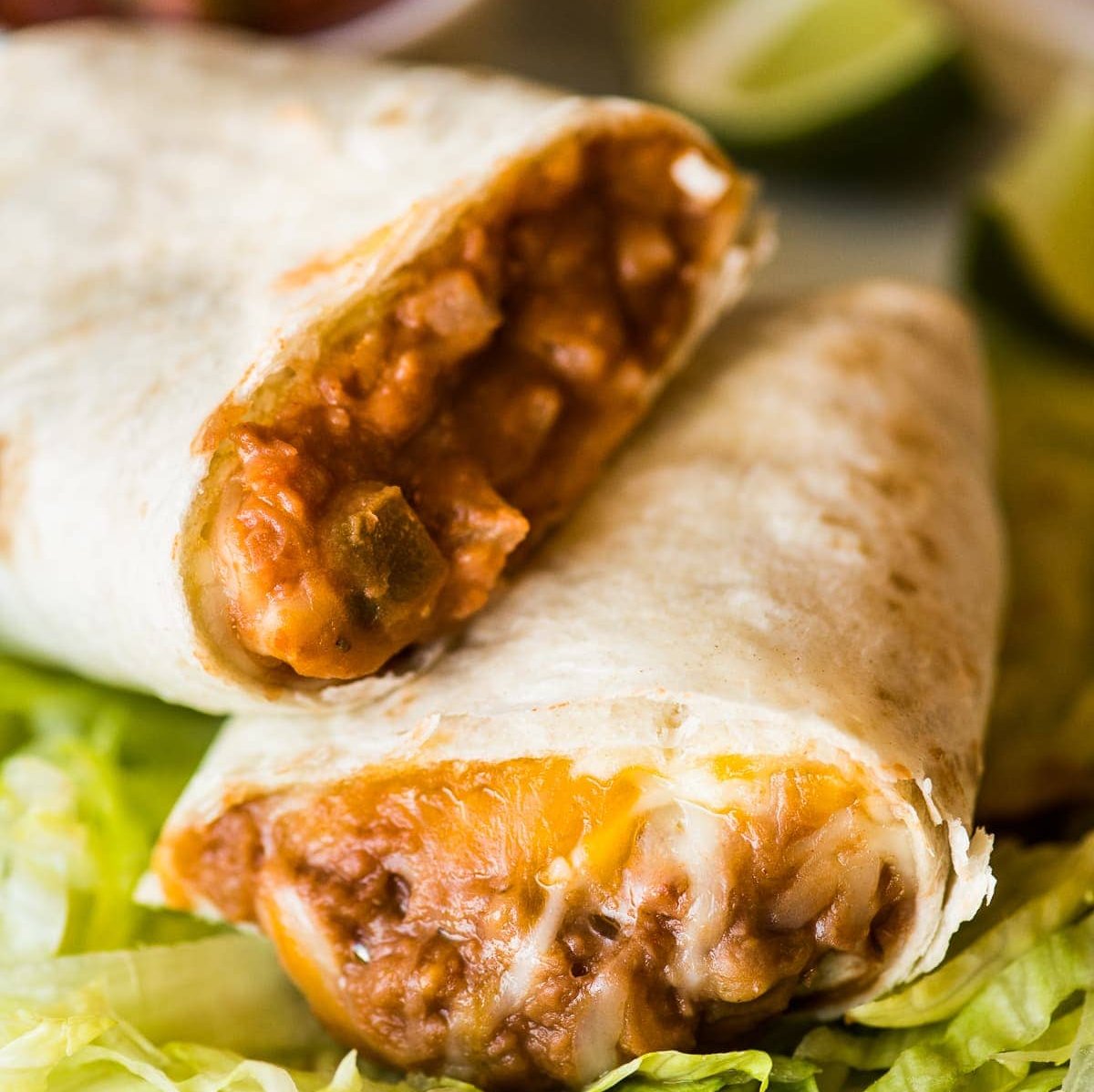
BURRITOS

INGREDIENTS

  • Tortilla

  • Refried beans

  • Cheese

burritos

Aye Papi!

MEXICAN FOOD…​

200
200
200
200

🌯 + 🌮 = ❤️

  • Delicious

  • Healthy

  • Mexican

200 200 200 200

🎨 Let’s do some crafts 🖌️

Coloring!

Right click, save, and print.

mexico coloring

Layout

Use Columns

Force Layouts

  • is-three-quarters

  • is-two-thirds

  • is-half

  • is-one-third

  • is-one-quarter

  • is-full

[.columns.is-vcentered]
=== Layout
[.column.is-one-quarter]
Use Columns


[.column]
Force Layouts

[.column.is-half]
[source,asciidoc]

Layout Blocks

Use -- to encapsulate blocks lasting several lines

[.column]
--
Force Layouts

* `is-three-quarters`
* `is-two-thirds`
* `is-half`
* `is-one-third`
* `is-one-quarter`
* `is-full`
--

Use == ! and === ! for slides with no headers.

Auto-animation

It’s really nice. Using just %auto-animate and some magic with setting identifiers, you’ll have automated animations. Check the examples!

Examples

Check source code to see how are they done

Network concepts

IP

DNS

LAYERS

LAN/WAN

ROUTER+SWITCH

Example 2

Options

Docker Compose

150

Kubernetes

150

Elastic Container Service

Docker Compose

Docker-maintained tool for

  • Defining multi-container Docker applications

    • Services (containers)

    • Healthcheck

    • Volumes

    • Network

    • Secrets

  • Start all of them with one command

  • Single machine

Example 3

Recap Data-Intensive applications ideas

SCALABILITY

RELIABILITY

MAINTAINABILITY

SCALABILITY

  • Measuring Load and Performance

  • Latency, Percentiles throughput

Example 4

What does it mean for us?

200
Figure 1. EC2

Elastic Compute Cloud (VM)

200
Figure 2. RDS

Relational Database System

200
Figure 3. VPC

Virtual Private Cloud (Networking)

200
Figure 4. IAM

Identity and Access Management

  • Healthy(?)

  • Delicious

  • Mexican food

200 200 200 200

Example 5

Between VM and Serverless

EC2

Virtual Machines

Lambda

Serverless

Between VM and Serverless

EC2

Virtual Machines

Containers

Lambda

Serverless

Customizations

Custom Styles

Asciidoc compiles to html code and uses CSS for styles.

Update the file reveal-override.css to adapt colors, icon, sizes, widths…​

Custom Logo for printing

docinfo-footer.html
<script src="reveal.js-plugins/menu/menu.js"></script>
css/reveal-override.css
:root {
  --r-main-font: "Poppins";
}

body {
    font-family: "Poppins"; 


@font-face {
  font-family: "Poppins";
  font-weight: 300;
  font-style: normal;
  src: url("../fonts/poppins/Poppins-Light.woff2");
}
@font-face {
  font-family: "Poppins";

Accent color

Change the occurences of #009fe3 in the css files for the color you desire.

Icons and Images

Background images

[.white_bg]
=== Background images
image::angele-kamp-bDuh4oK_MCU-unsplash.jpg[background]

Limited height

image::martin-pechy-....jpg[height=600]

martin pechy iXHdGk8JVYU unsplash

Background Images contained

Use it for screenshots
=== !
image::martin-pechy-....jpg[background, size=contain]

Font Awesome icons

With icon:font-awesome[] you can improve the eye cachiness of your slides

Icon customization

Play with the extra variables size and set for variation as well as your css styles

[.red]
icon:python[set=fab,size=7x]
css/reveal-override.css
/* Main color */
.icon > i,
svg {
   color: #009fe3;
}

/* Specify custom colors */
div.red > p > span.icon > i {
  color: red;
}

Showing Code

Code blocks

You can use ---- and .... to limit code blocks

[source]
----
pi = 3
----

Syntax highlight

We can use highlight.js library to make our code shine.

Choose in the main slide deck all the languages you want to use
:source-highlighter: highlightjs
:highlightjs-languages: asciidoc,python,yaml,Dockerfile,dockerfile,Bash
And specify the language in the block
[source, python]
----
pi = 3
----

Syntax highlight Result

pi = 3.1415
name = "m"

Do not duplicate code

Get your code directly from files!
[source,python]
----
include::../code_examples/flask_app.py[]
----
Or just some lines
[source,python]
----
include::../code_examples/flask_app.py[lines=1]
include::../code_examples/flask_app.py[lines=6..10]
----
from flask import Flask
import sqlite3

DB_FILE = "my_app.db"

app = Flask(__name__)

@app.route("/")
def main_page():
    return "<p>Hello, World!</p>"
from flask import Flask
app = Flask(__name__)

@app.route("/")
def main_page():
    return "<p>Hello, World!</p>"

Line numbers

Use source%linenums to show line numbers. [1]

[source%linenums,python]
----
include::../code_examples/flask_app.py[]
----
1. |test|

Line numbers

from flask import Flask
import sqlite3

DB_FILE = "my_app.db"

app = Flask(__name__)

@app.route("/")
def main_page():
    return "<p>Hello, World!</p>"

Highlight lines of code

Use highlight= to draw the atention to the lines you are explaining.

, acts as and, .. is to indicate a line range and | indicates different steps.

[source,python,highlight="1,6|7..10"]
----
include::../code_examples/flask_app.py[]
----
Don’t use source%linenums with this since in some cases causes conflicts

Highlight lines of code

from flask import Flask
import sqlite3

DB_FILE = "my_app.db"

app = Flask(__name__)

@app.route("/")
def main_page():
    return "<p>Hello, World!</p>"

Incrementally reveal code

Incrementally reveal code

from flask import Flask

Incrementally reveal code

from flask import Flask

app = Flask(__name__)

@app.route("/")
def main_page():
    return "<p>Hello, World!</p>"

Incrementally reveal code

from flask import Flask
import sqlite3

DB_FILE = "my_app.db"

app = Flask(__name__)

@app.route("/")
def main_page():
    return "<p>Hello, World!</p>"

How to do it?

Use a combination of [%auto-animate] and data-id=xyz in different slides

[%auto-animate]
=== Incrementally reveal code
[source,python,highlight="1,3",data-id=flask-app]
----
include::../code_examples/flask_app.py[lines=1,6]
----

[%auto-animate]
=== Incrementally reveal code
[source,python,highlight="4..7",data-id=flask-app]
----
include::../code_examples/flask_app.py[lines=1]

include::../code_examples/flask_app.py[lines=6..10]
----

[%auto-animate]
=== Incrementally reveal code
[source,python,highlight="2..4",data-id=flask-app]
----
include::../code_examples/flask_app.py[]
----

Extra Plugins

We’ve enabled some plugins

Countdown

I’ve added the Countdown.js plugin to add timers to your slides

Time to finish the slide

Use t to start/stop timer and + and - to modify time.

+ and - keys are keyboard-specific so you’ll need to change them in docinfo-footer.html
+++<countdown time="60" autostart="yes" />+++

Canvas[1]

Press c toggle draw mode on slide.

b will toggle the chaklboard.

Menu[1]

Press m to obtain the menu.

CustomControls[1]

Those icons on the bottom left!

Extra plugins to configure

reveal.js-plugins provides more plugins that you can make available just modifying docinfo-footer.html

Resources

Image Credits